How do I use a template to bulk import multiple properties?
Use [Import] in [All Properties] when you need to create multiple properties and their units from one spreadsheet. This flow is currently available on Web only.
Entry:
- Web: [Properties] -> [All Properties]
Web
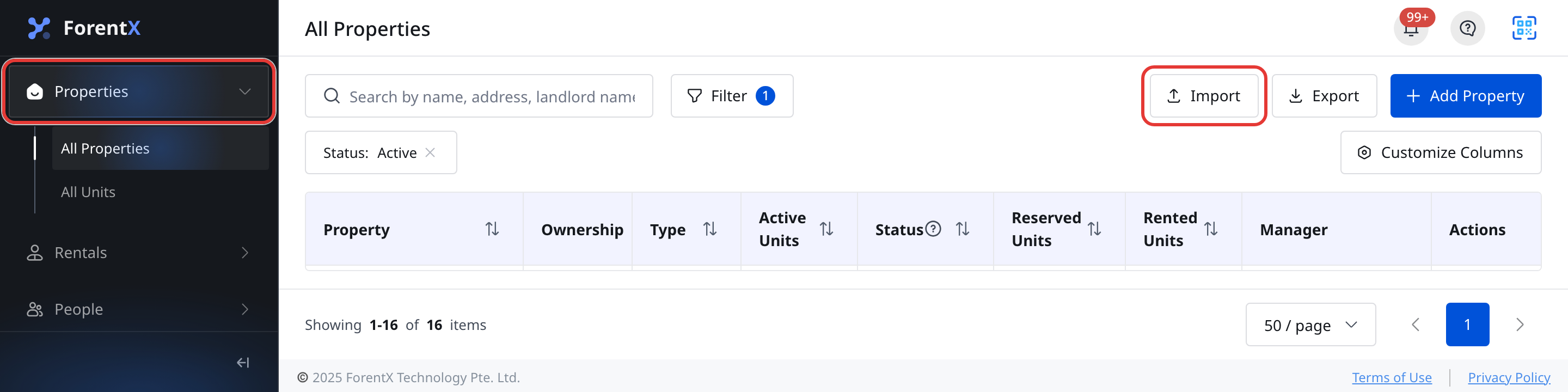
Step 1 Open [All Properties], then click [Import].
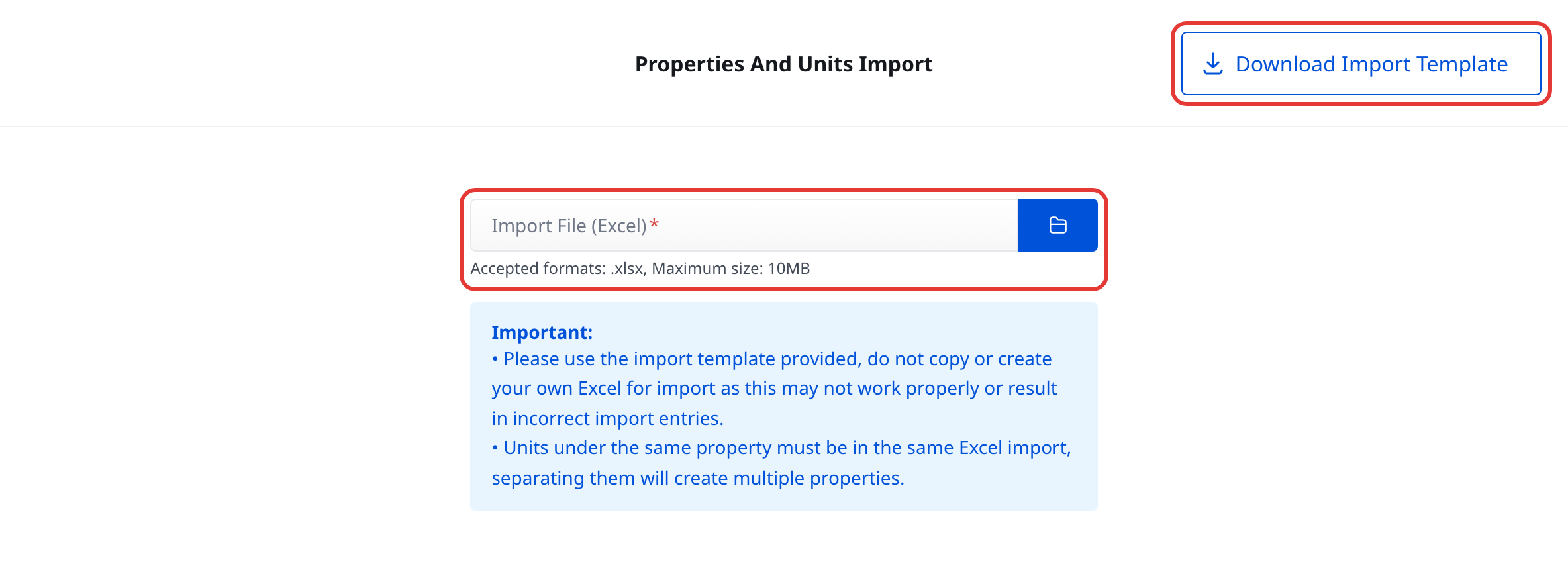
Step 2 On [Properties And Units Import], click [Download Import Template]. Always start with the official template from this page.
Step 3
Fill in the template with the properties and units you want to create, then save the file as .xlsx.
- Keep all units for the same property in the same spreadsheet
- Do not reuse an old spreadsheet that was created outside this page
Step 4
Return to [Properties And Units Import], choose your .xlsx file in [Import File (Excel)], then click [Import Properties And Units].

Step 5 If the upload does not pass validation or the import fails, review [Import Explanation] on the same page and download the error report if it is provided.
Platform differences
- Web: Supports the full bulk import flow, including template download, file selection, import submission, and error report download.
- App: You can currently browse properties and units in [Properties], but there is no batch import or template download entry on the current App properties page.
Note:
- The current import page only accepts
.xlsxfiles. - The current page shows [Accepted formats: .xlsx, Maximum size: 10MB].
- Use the template downloaded from this page so the property and unit columns match the current import contract.