How do I upload photos for an individual rental unit?
You can upload unit photos from [All Units]. Web manages them in [Unit Detail] -> [Overview], while App uses the [Unit Photos] tab inside [Edit Unit].
Entry:
- Web: [Properties] -> [All Units] -> open the unit -> [Overview]
- App: [Properties] -> [All Units] -> [Edit] -> [Unit Photos]
Web
Upload the images from Unit Detail
- Open [Properties] -> [All Units], then select the unit you want to update.
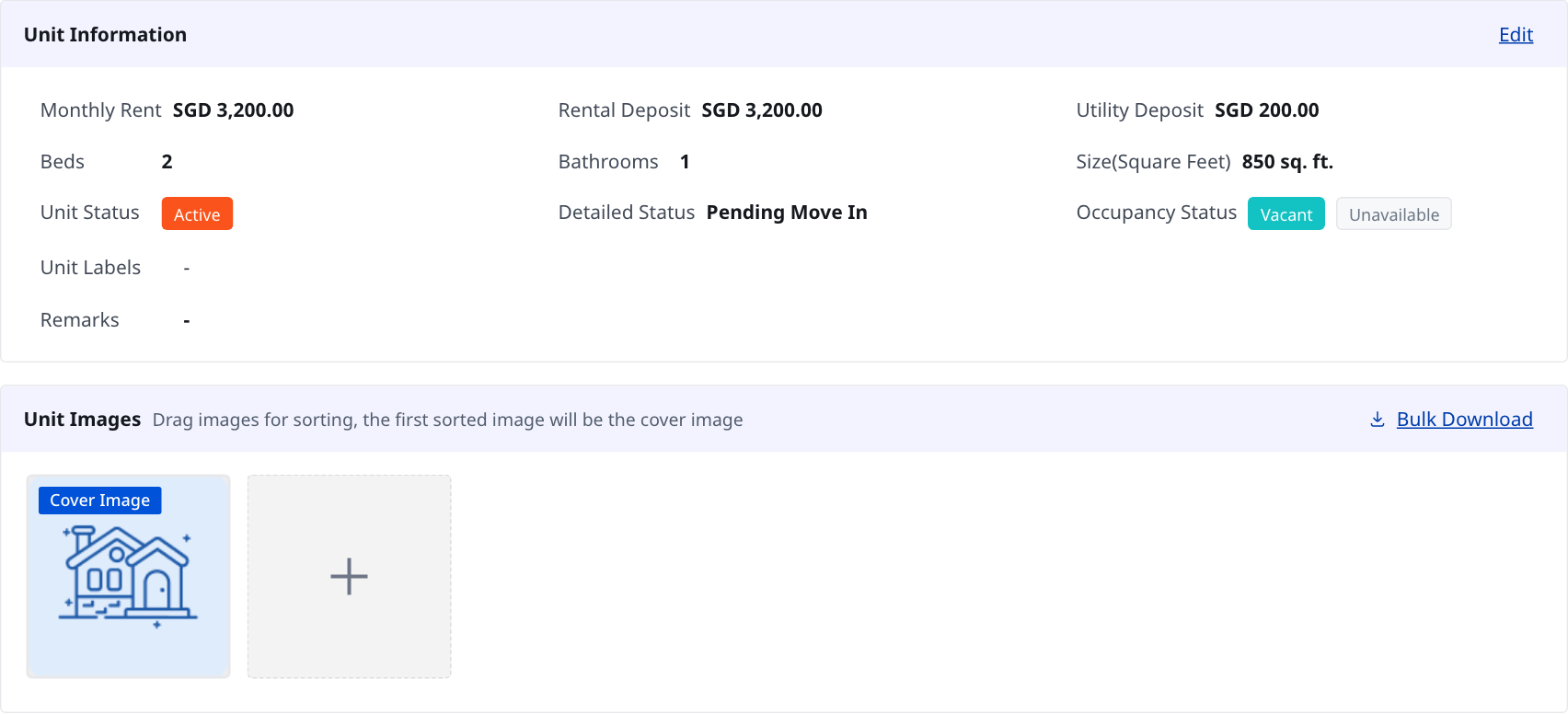
- In [Overview], find [Unit Images]. Click the upload tile with the [plus] icon and choose the images you want to add.
- After the upload finishes, review the image order and confirm the first image is the [Cover Image].
App
Open the Unit Photos tab
- In [Properties] -> [All Units], open [Edit] for the unit you want to update.
- Switch to [Unit Photos].
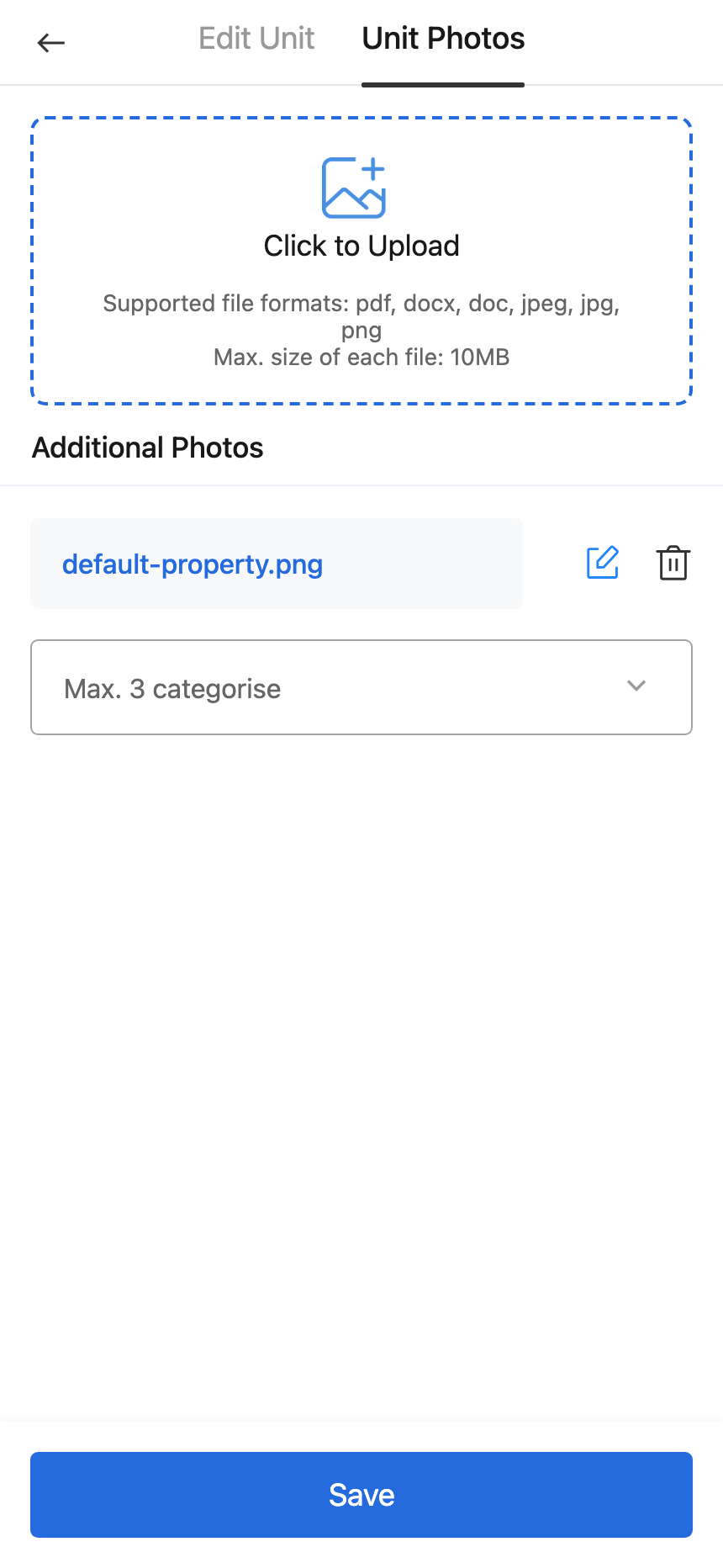
- Tap [Click to Upload].
Choose pictures and save
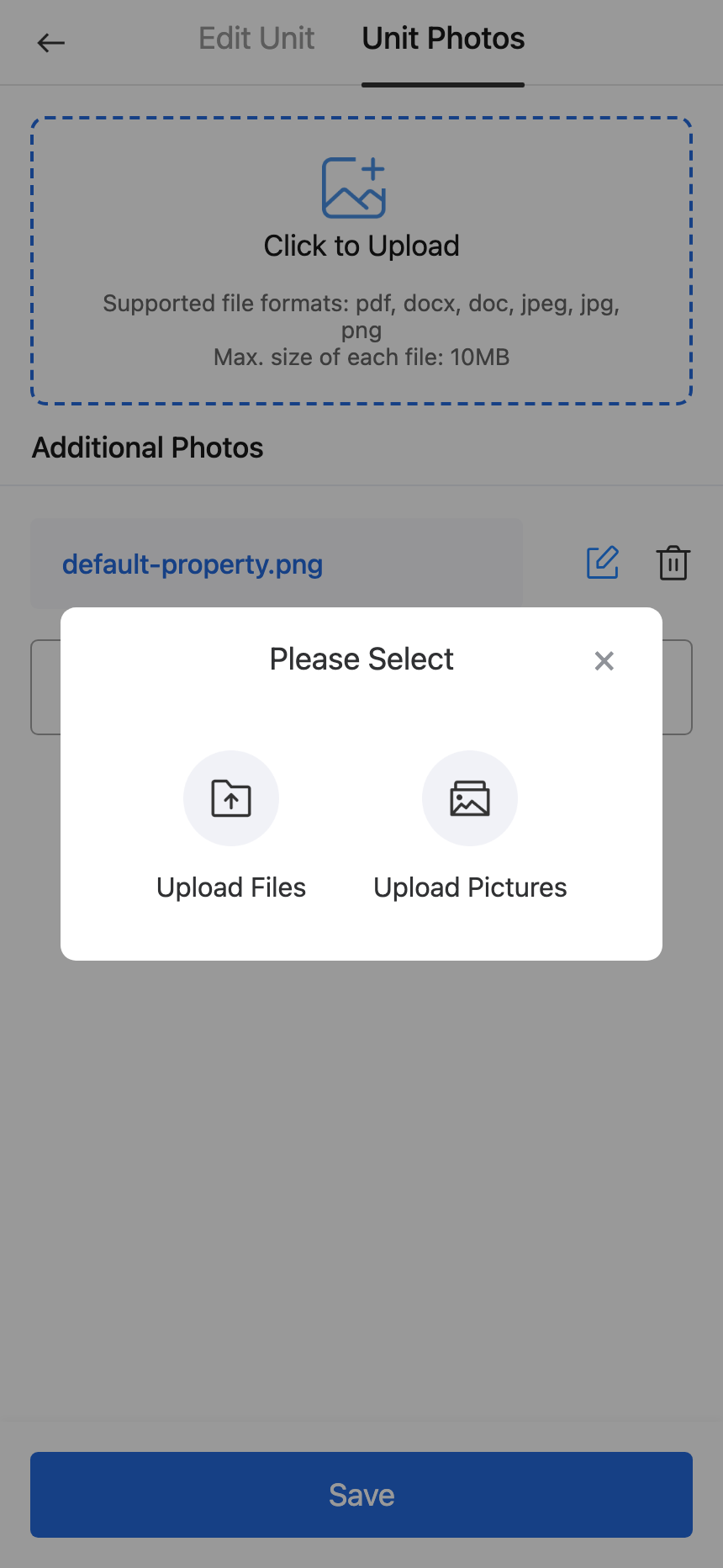
- In the popup, choose [Upload Pictures] when you want to add photos.
- After the new photo appears under [Additional Photos], tap [Save].
- If needed, you can rename or delete an uploaded file before saving.
Platform differences
- Web manages photos inside [Unit Detail] -> [Overview].
- App manages photos inside [Edit Unit] -> [Unit Photos] and requires [Save] to keep the changes.
- Web shows [Bulk Download] on the image card once the unit already has files.
Note:
- The first image becomes [Cover Image].
- The current uploaders accept
.jpg,.jpeg, and.pngimages, with up to 10 images per unit. - In App, the popup also shows [Upload Files], but use [Upload Pictures] when the goal is to add photos.