How do I set a property's status to "Inactive"?
You can make a property inactive from [All Properties]. Web opens the confirmation from the property detail page, while App opens it from the property card's [More Operations] menu.
Entry:
- Web: [Properties] -> [All Properties] -> open the property
- App: [Properties] -> [All Properties] -> property card -> [More Operations]
Web
Open the property and start the status change
- Go to [Properties] -> [All Properties], then open the property you want to update.
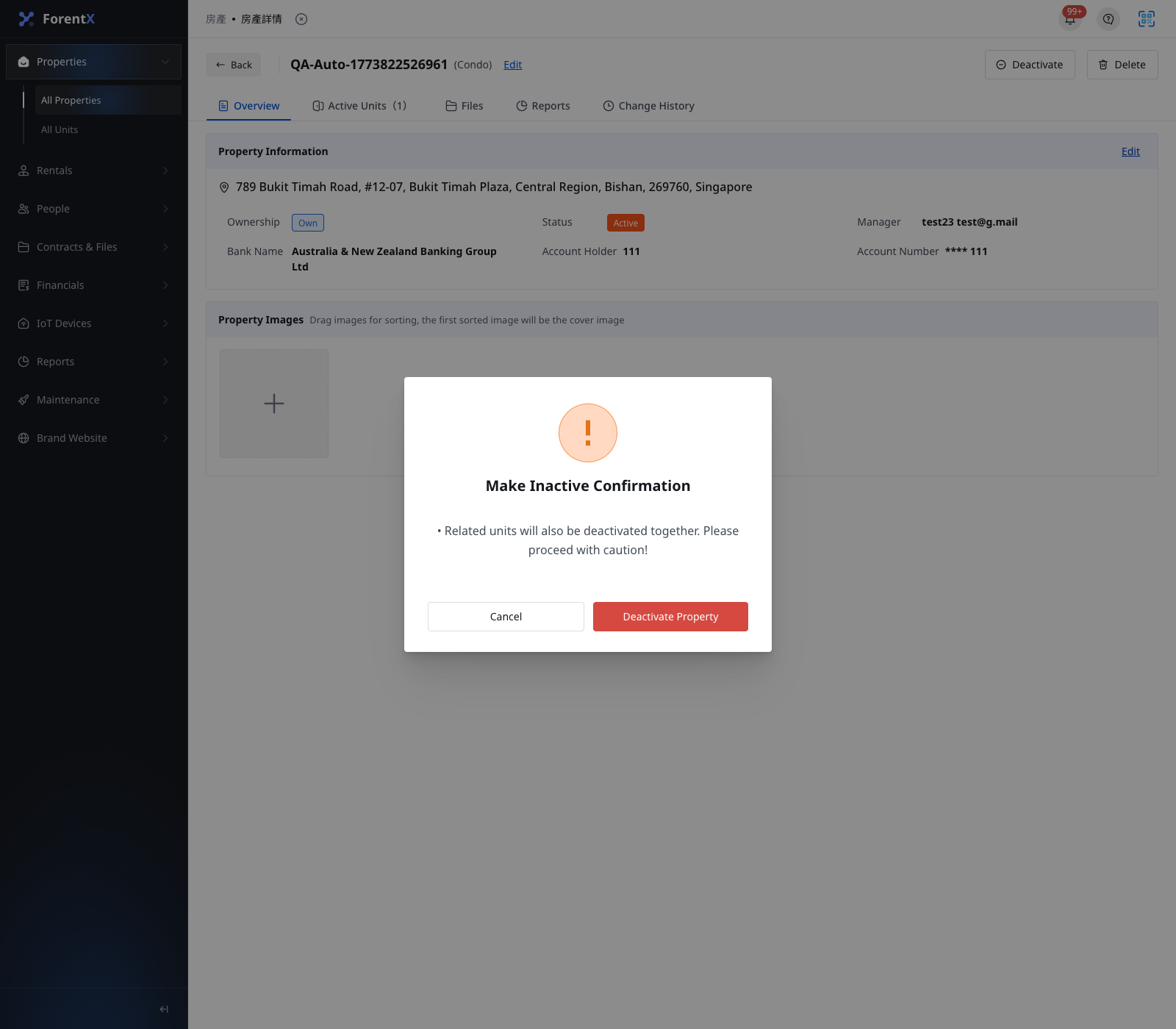
- Confirm the property is currently [Active], then click [Deactivate] in the top-right corner of the property detail page.
- When [Make Inactive Confirmation] appears, review the warning and click [Deactivate Property].
App
Open the property card actions
- Go to [Properties] -> [All Properties].
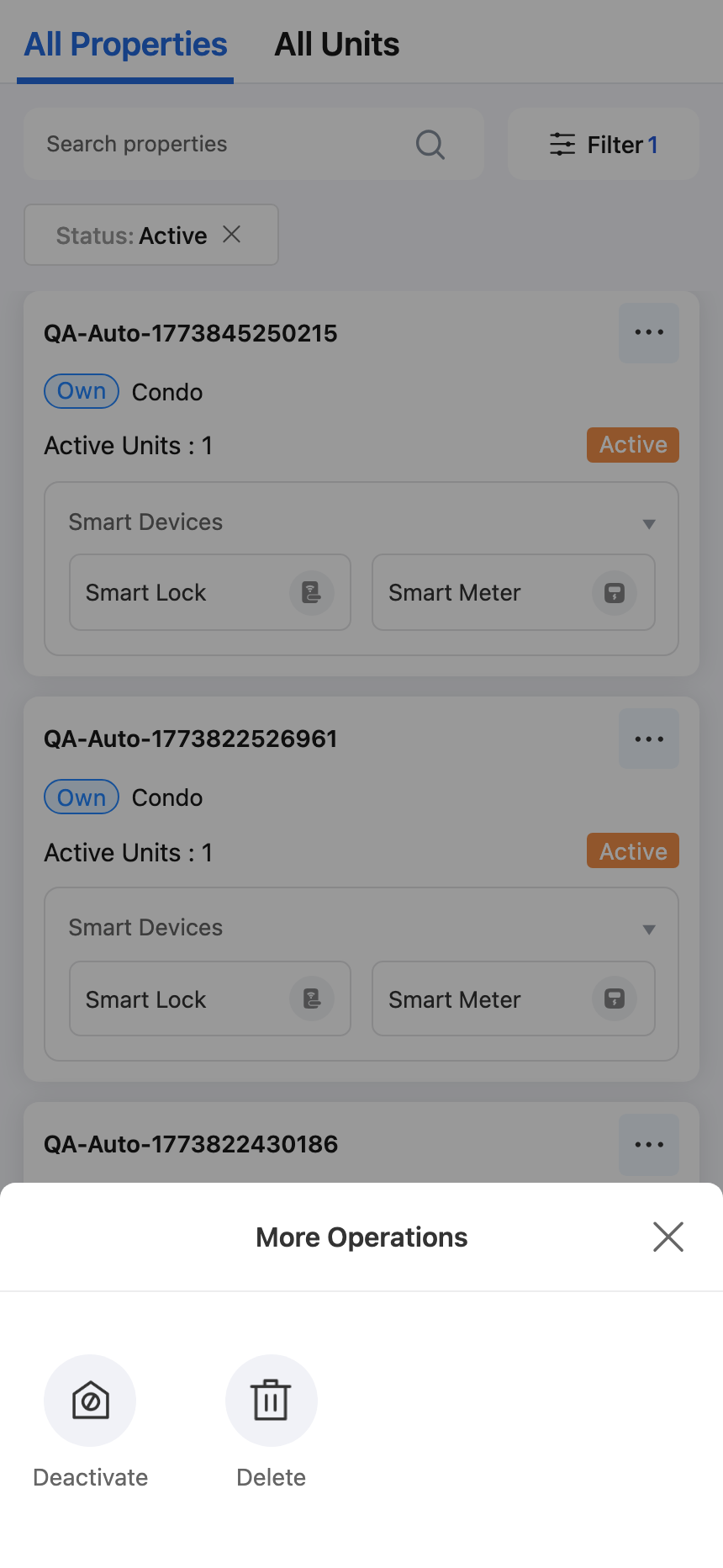
- Find the property card you want to update, then tap [More Operations].
- Tap [Deactivate].
Review the confirmation
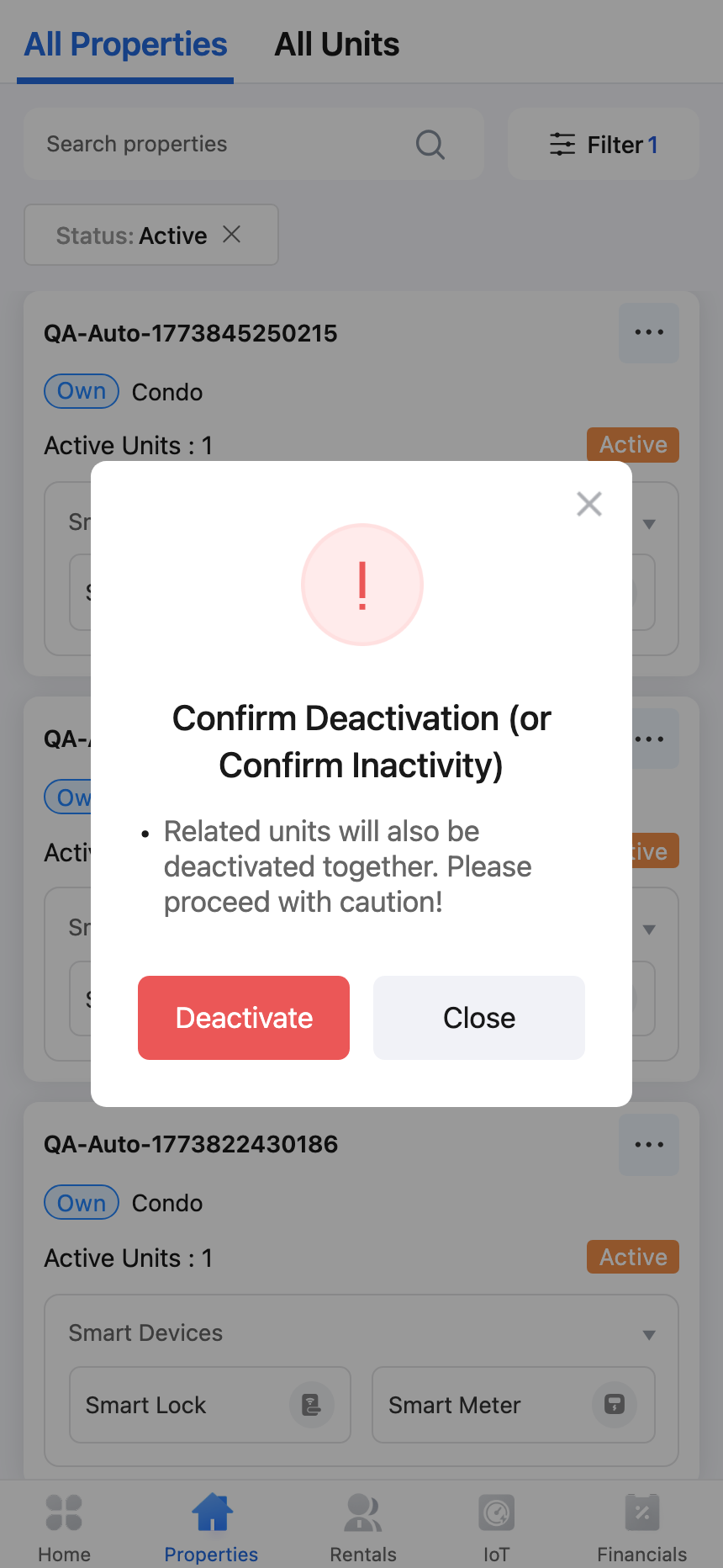
- The App shows a confirmation dialog before the status changes.
- Review the warning that related units will also be deactivated together, then tap [Deactivate] only when you are ready to continue.
Platform differences
- Web uses the [Deactivate] button in the property detail header.
- App uses [More Operations] on the property card in [All Properties].
- Both platforms block the action when the property still has active leases or tenant reservations.
Note:
- Deactivating a property also deactivates its related units.
- If the property still has active leases or tenant reservations, the system shows a blocker instead of the confirmation dialog.
- After the change is completed, the property status becomes [Inactive].