How do I manually add a new property?
Use the Web [Add Property] wizard when you need to manually create a new property record. The current flow is a step wizard, so you move through the property type, address, unit details, bank account, and manager setup before the property is submitted.
Entry:
- Web: [Properties] -> [All Properties] -> [Add Property]
Web
Step 1
Open [Add Property], then choose the ownership and property type.
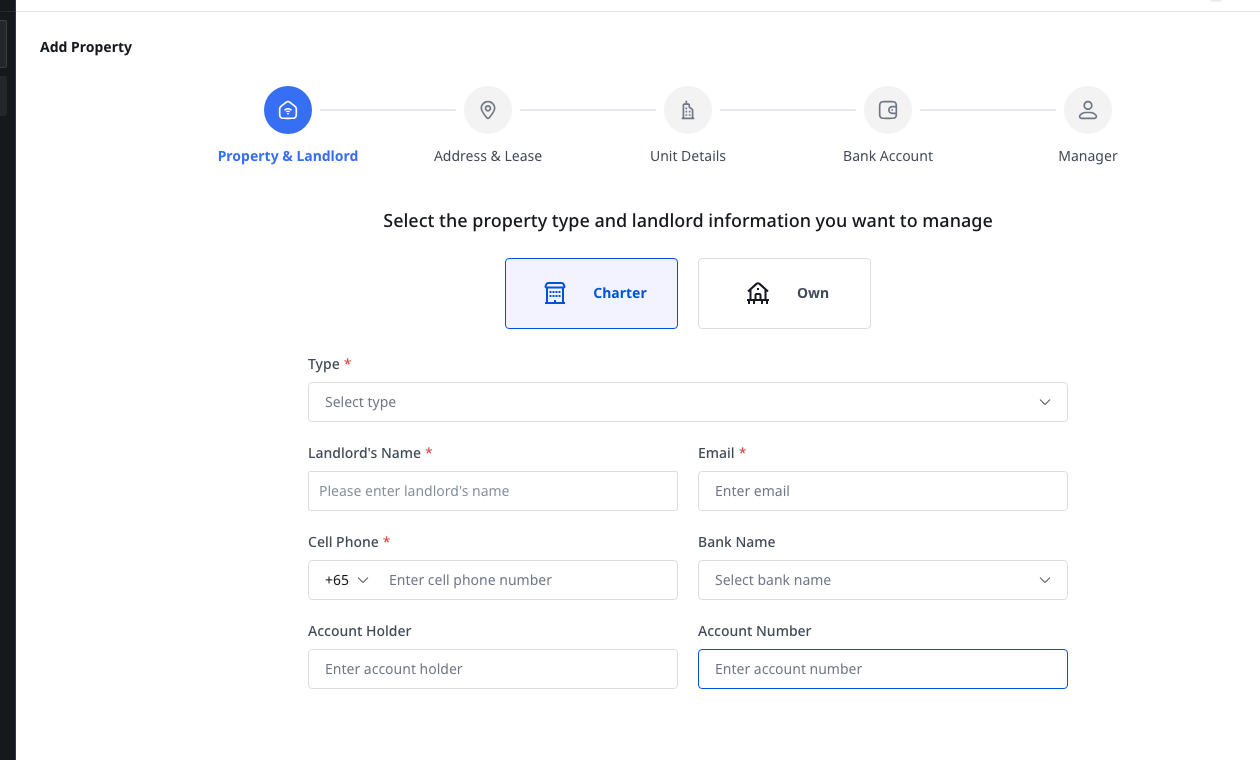
- Keep the property as [Charter] if you need to record landlord information in the same setup flow.
- Switch to [Own] if the property does not need the landlord block.
- In the same step, choose the property [Type].
Step 2
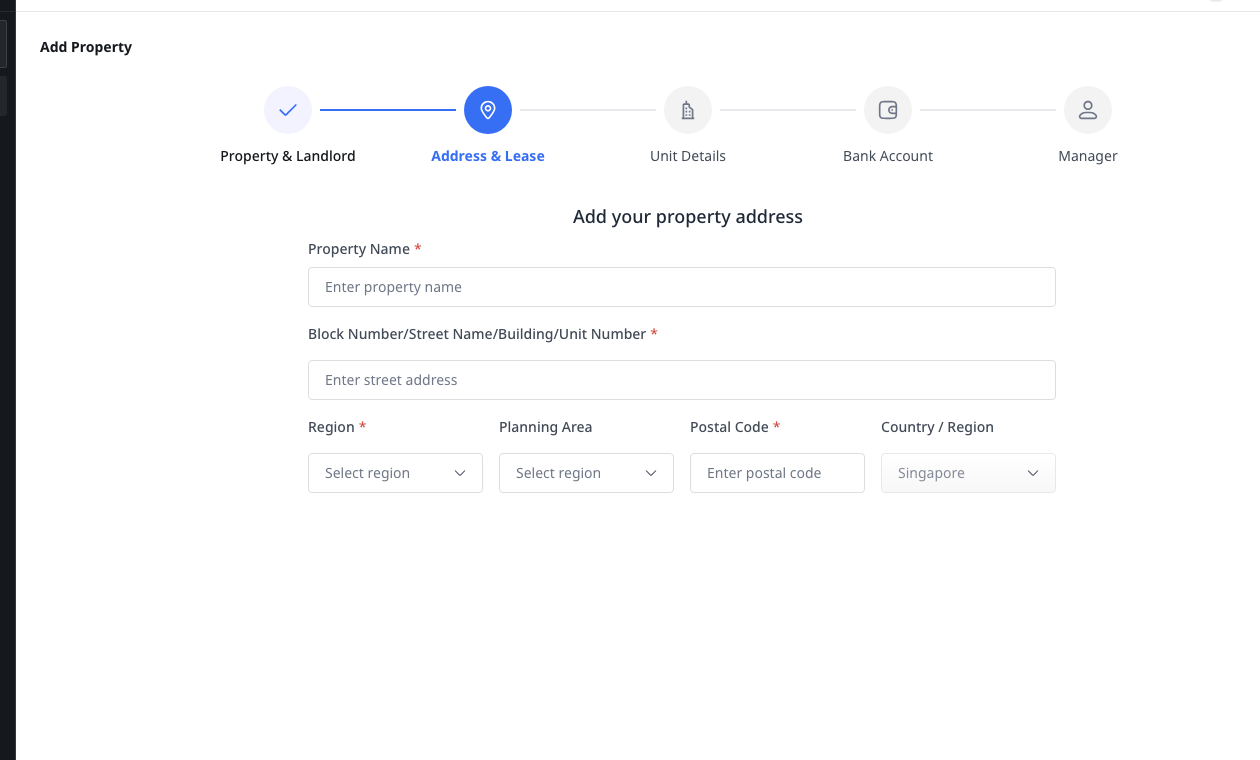
Click [Next] to continue to [Address & Lease], then complete the property address details.
- Complete [Property Name] and the street address fields first.
- Complete the region, planning area, postal code, and country or region fields shown in the current wizard.
- If you are creating a chartered property, the landlord lease details stay in this part of the setup flow.
Step 3
Continue through the remaining wizard steps until the property is ready to submit.
- In [Unit Details], add at least one unit before you can finish the wizard.
- In [Bank Account], select the account that should be linked to the property.
- In [Manager], assign the staff member who will manage the property.
- Submit the property from the final step after all required fields pass validation.
Platform differences
| Topic | Web | App |
|---|---|---|
| Add Property entry | [Properties] -> [All Properties] -> [Add Property] | No dedicated [Add Property] page at this time |
| Setup flow | Multi-step wizard for property creation | Current App carriers cover property list, filter, detail, and unit creation instead |
Note:
- The wizard validates each step before it lets you move forward.
- If the property is [Charter], the landlord information and landlord lease-related fields stay in the setup flow.
- The current implementation checks unit usage limits before it lets you finish [Unit Details].