How do I add and manage photos for my properties?
Use the property detail [Overview] tab to work with the current property photo section. Web supports adding and managing photos, while App currently keeps the same section as view only.
Entry:
- Web: [Properties] -> [All Properties] -> select a property -> [Overview] -> [Property Images]
- App: [Properties] -> [All Properties] -> select a property -> [Overview] -> [Property Image]
Web
Step 1 Open the property you want to update, then stay on [Overview]. In [Property Images], click the highlighted tile with the [plus] icon to add more photos.
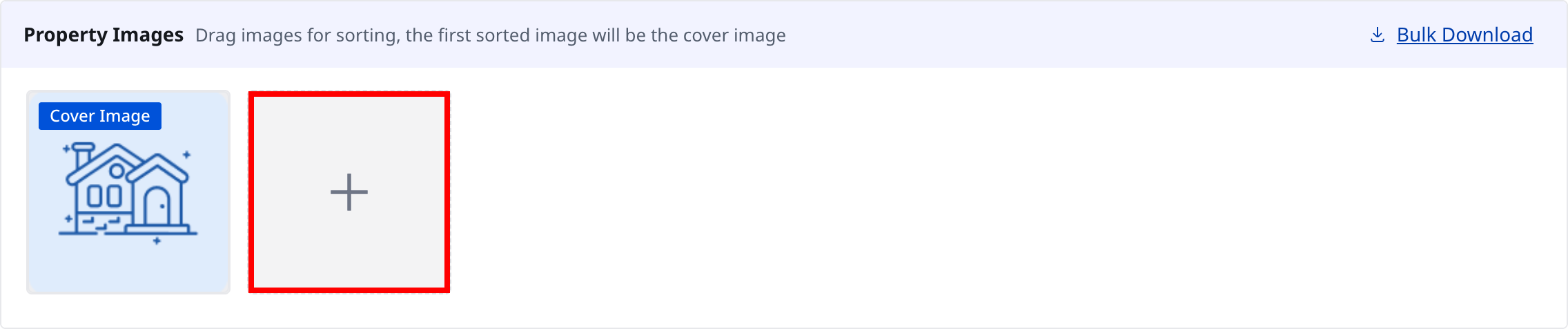
Step 2 When the upload dialog opens, choose the image files you want to attach and confirm the upload.
- Web accepts
.jpg,.jpeg, and.png - You can keep up to 10 photos for one property
Step 3 Continue managing the same photo set from [Property Images].
- Drag photos to change the display order
- The first photo becomes [Cover Image]
- Use [Preview file] to review an uploaded photo
- Use [Delete] to remove a photo you no longer need
- Use [Bulk Download] to download the current photo set again
App
Step 1 Open the same property in App, stay on [Overview], and scroll to [Property Image].
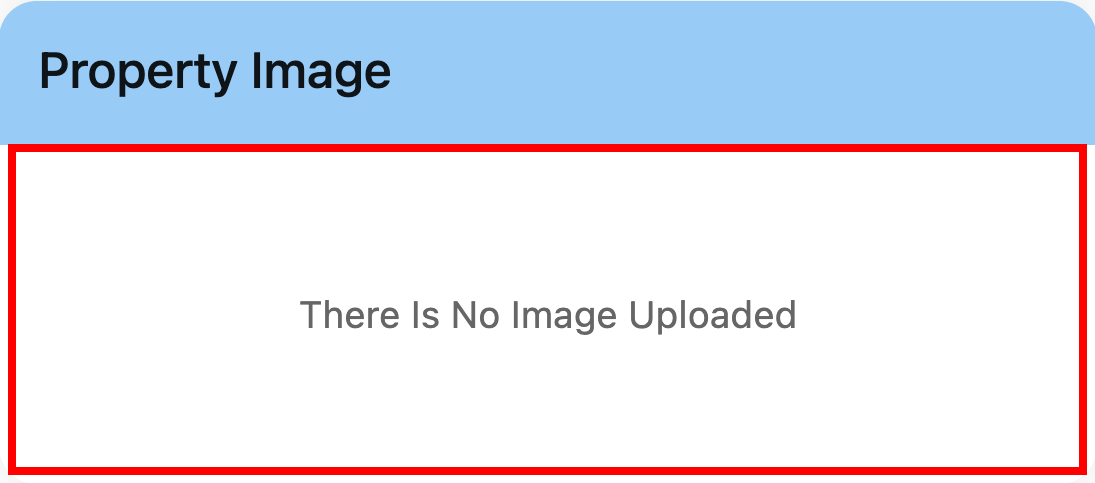
Step 2 Use the App section to check the current property photos.
- If the property already has photos, tap a thumbnail to preview it full screen and swipe through the current images
- If the property does not have photos yet, App shows [There Is No Image Uploaded]
Platform differences
| Topic | Web | App |
|---|---|---|
| Section label | [Property Images] | [Property Image] |
| Add new photos | Supported | Not available |
| Reorder and cover image | Supported by dragging photos | Not available |
| Delete and bulk download | Supported | Not available |
| View current photos | Supported | Supported as view only |
Note:
- Property photo management is handled from the property detail page instead of a list-level [Upload Image] action.
- Use Web whenever you need to add, delete, reorder, or download property photos.
- App currently keeps this section as view only.