How do I view and manage deposit records for a tenant tenancy?
Open a tenant tenancy detail page and use [Financials] -> [Deposits] to review deposit records for that tenancy. On Web, eligible rows also show the action menu; on App, you can review the deposit card and open its matching detail page.
Entry:
- Web: [Rentals] -> [Tenant Tenancies] -> open a tenancy -> [Financials] -> [Deposits]
- App: [Tenant Tenancies] -> open a tenancy -> [Financials] -> [Deposits]
Web
Step 1 Open [Tenant Tenancies], open the tenancy you want to review, then select [Financials] and [Deposits].
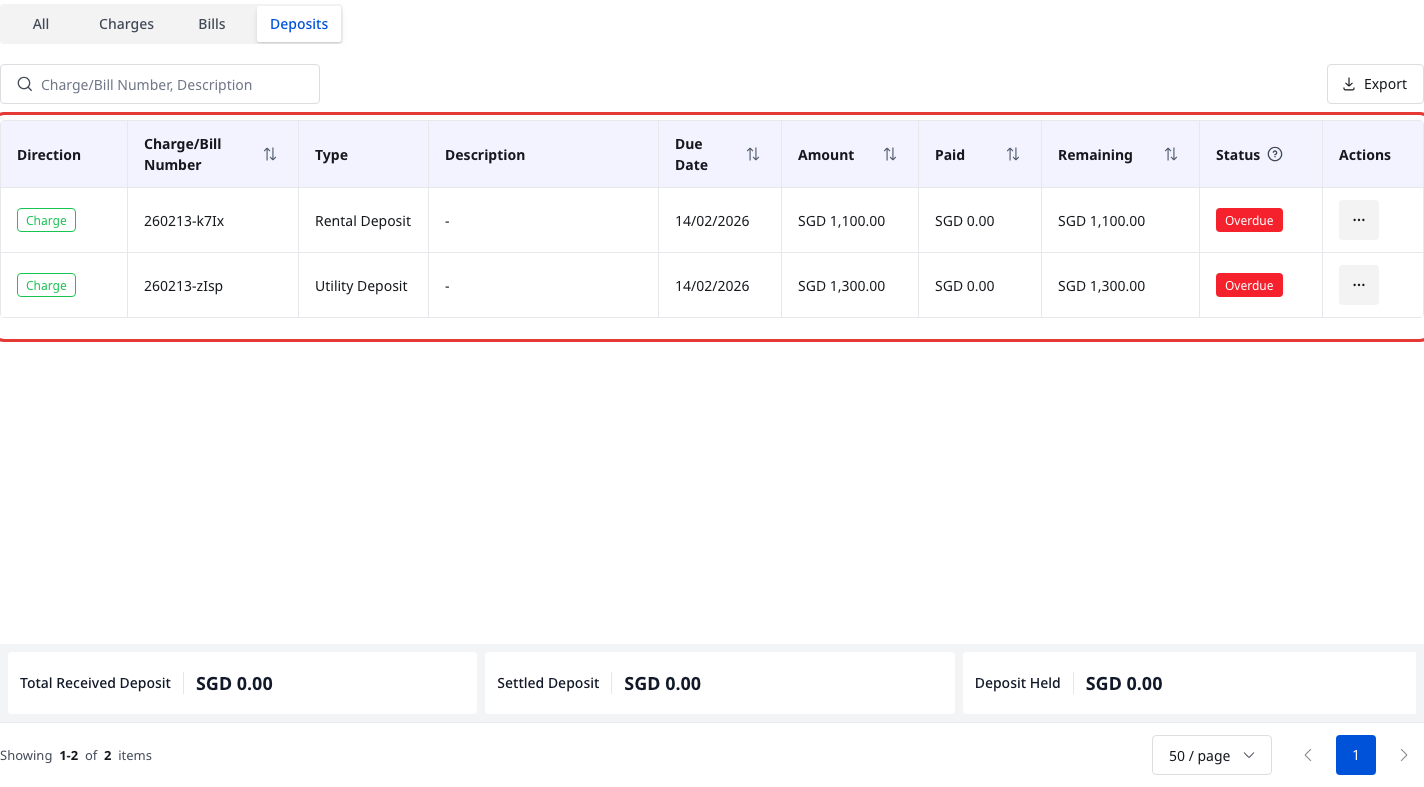
Step 2 Review the tenant deposit table. The current verified Web list shows these key fields:
- [Direction]
- [Charge/Bill Number]
- [Type]
- [Description]
- [Due Date]
- [Amount]
- [Paid]
- [Remaining]
- [Status]
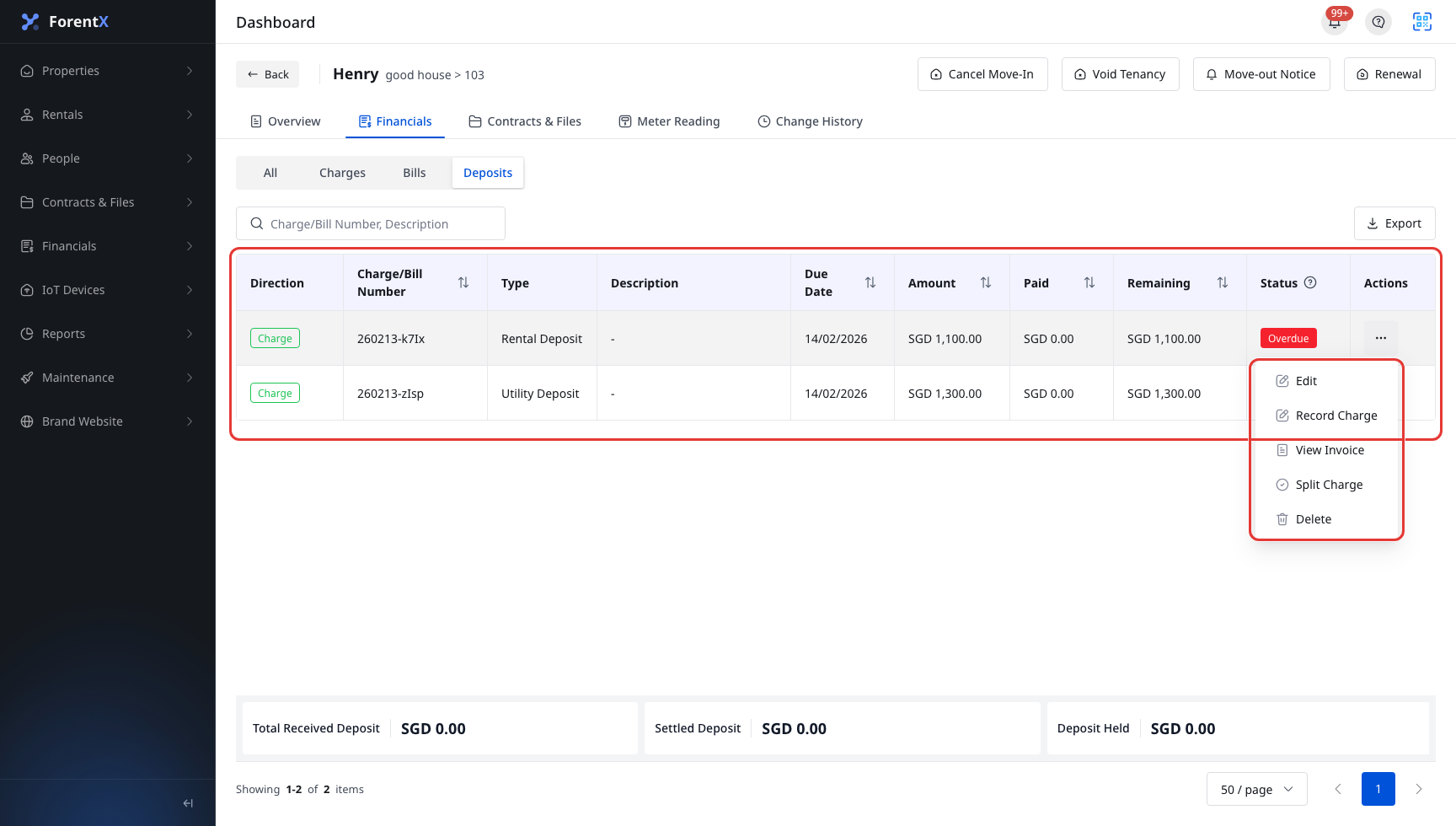
Step 3 Open the action menu on the target deposit row. The current verified tenant deposit charge shows:
- [Edit]
- [Record Charge]
- [View Invoice]
- [Split Charge]
- [Delete]
App
Step 1 Open [Tenant Tenancies], open the tenancy, then tap [Financials] and [Deposits].

Step 2 Review the deposit card. The current verified App card shows:
- the deposit type
- [Charge] or [Bill]
- [Amount]
- [Paid]
- [Remaining]
- [Due Date]
- [Description]
- the record [Status]
Step 3 Tap the deposit card to open the matching detail page. The current verified sample opens [Charge Details]. Deposit bill records open [Bill Details].

Platform differences
- Web shows the deposit list as a table and supports row actions for eligible records.
- App shows the deposit list as cards and lets you open the matching [Charge Details] or [Bill Details] page.
- Deposit refund or withholding actions only appear when the deposit record has an eligible paid balance. In the current verified sample, the tenant deposit charges are unpaid, so Web shows the standard charge actions instead.
Note:
- Use this tenant-tenancy path when you need to review tenant deposit records and handle eligible tenant deposit refunds or deductions.
- Landlord deposits follow a separate payable flow, so do not use the landlord tenancy path as the tenant deposit refund workflow.
- Available actions change with the record direction, paid amount, settlement status, and bill or charge status.