How do I track the signing progress of an electronic contract?
Use [Electronic Contracts] to monitor the current signing status of every contract you created.
Entry:
- Web: [Contracts & Files] -> [Electronic Contracts]
- App: [Home] -> [Electronic Contracts]
Web
Step 1 Open [Electronic Contracts].
Step 2 Check the [E-Signing Status] column for the contract you want to follow.
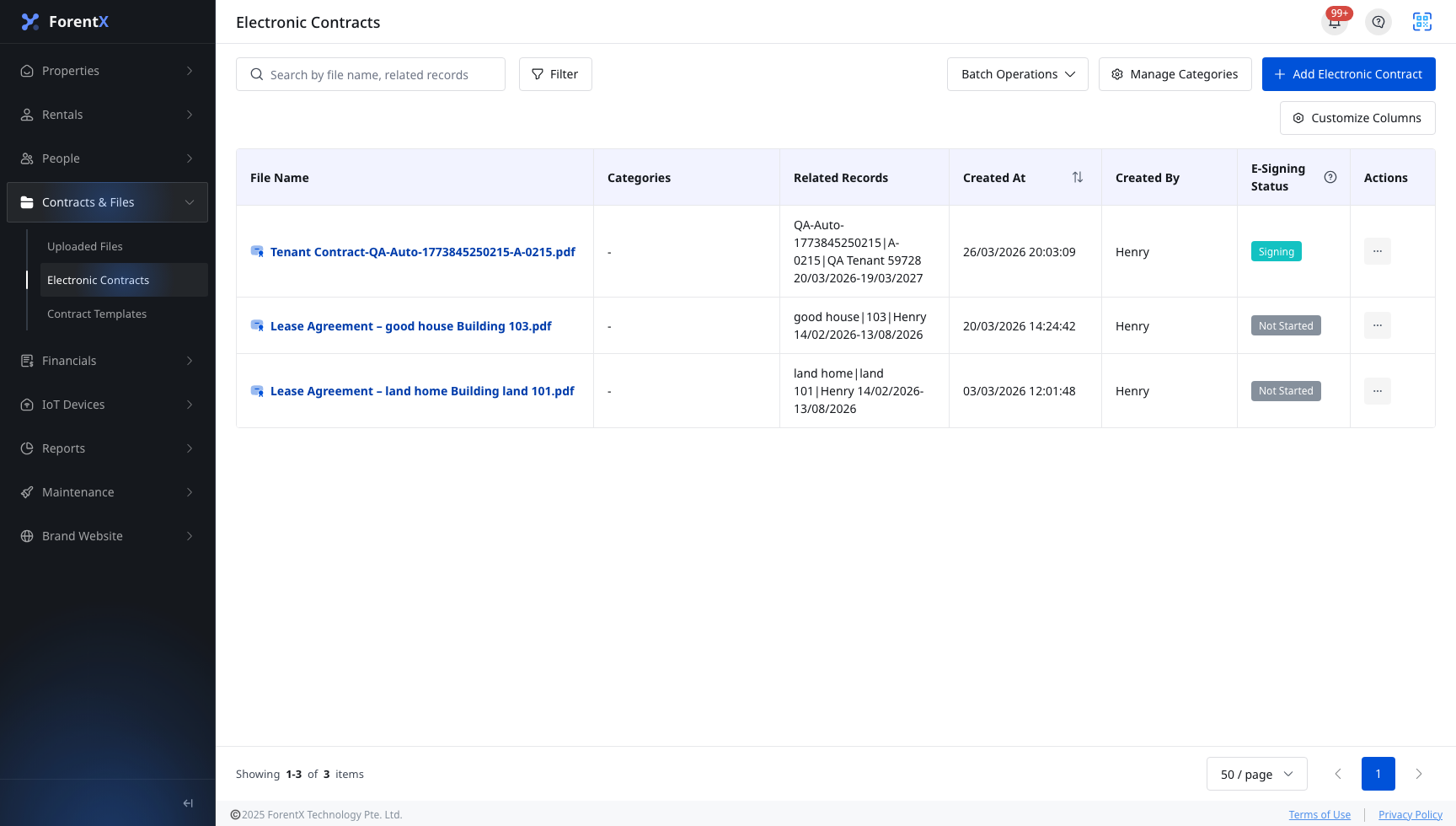
Step 3 Use the row actions that match the current status:
- [Not Started]: actions such as [Initiate E-Signature], [Edit], [Download], and [Delete]
- [Signing]: actions such as [View], [Download], [Cancel], and [Remind]
App
Step 1 Open [Electronic Contracts] from [Home].
Step 2 Use the stats bar to switch between [All], [Not Started], [Signing], [Completed], and [Expired].
Step 3 Review each row's current status and primary action:
- [Not Started] rows can show [Initiate E-Signature]
- [Signing] rows can show [View]
- The more-operations sheet supports actions such as [Remind] and [Cancel] for signing items

Platform differences
| Topic | Web | App |
|---|---|---|
| Status carrier | [E-Signing Status] column inside the table | Stats bar plus status tags on each card |
| Main actions | Row action menu beside each contract | Primary button on the card, plus the more-operations sheet |
| Entry | [Contracts & Files] -> [Electronic Contracts] | [Home] -> [Electronic Contracts] |
Note:
- [Not Started] means the contract exists but the invitation has not been sent yet.
- [Signing] means at least one signer still needs to complete the contract.
- The same list is where you create, follow, remind, and cancel electronic-contract signing workflows.