How do I create and sign an electronic contract for an existing tenancy?
Use [Electronic Contracts] to generate a contract from an existing tenancy, preview the result, and start the e-signing flow.
Entry:
- Web: [Contracts & Files] -> [Electronic Contracts]
- App: [Home] -> [Electronic Contracts]
Web
Step 1 Open [Electronic Contracts], then click [Add Electronic Contract].
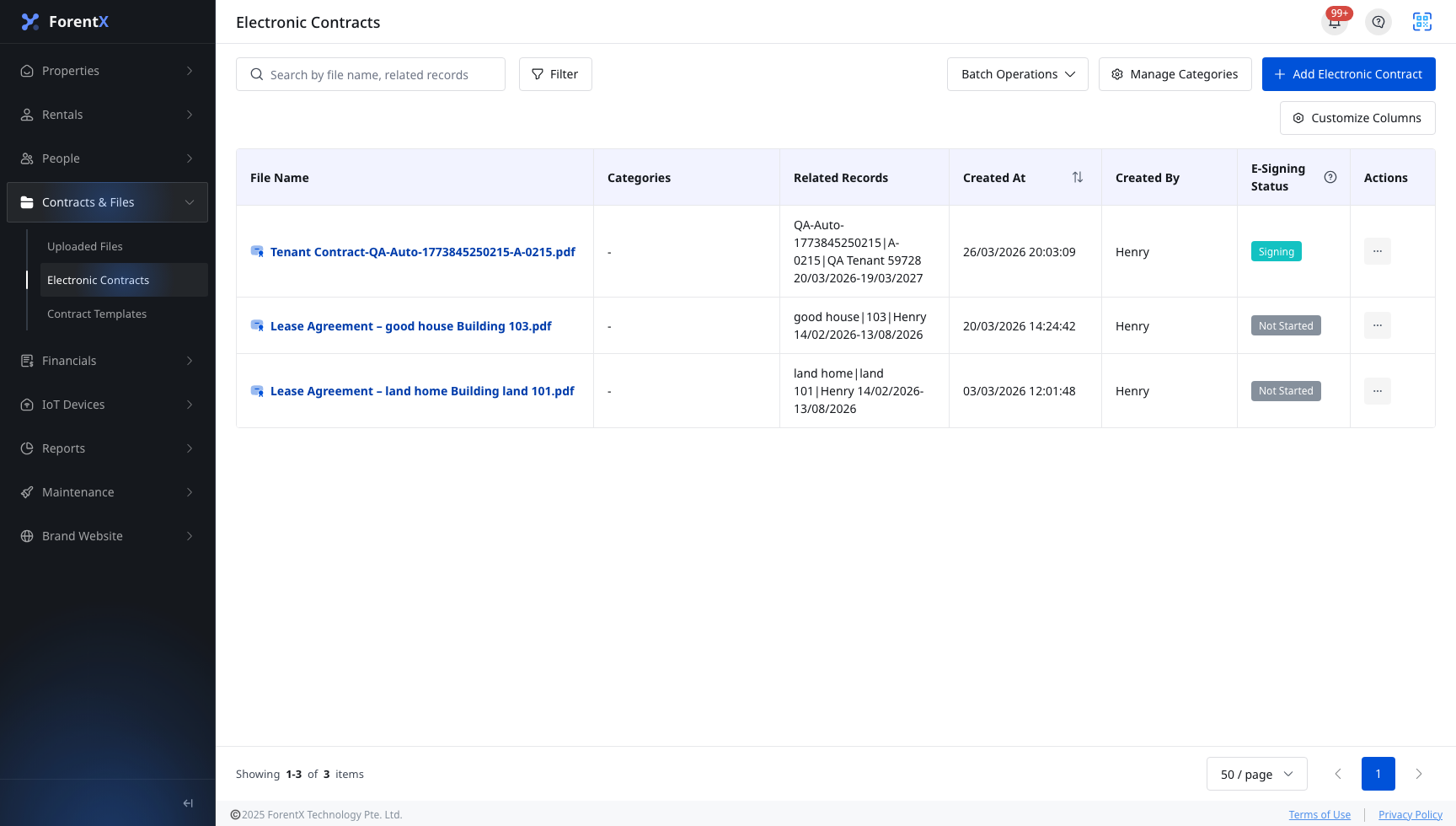
Step 2 In [Select Electronic Contract Related Tenancy], choose the tenancy you want to use, then click [Next].
Step 3 Complete the contract setup details:
- Confirm or update [Document Name]
- Add up to 3 [Categories] if needed
- Review the locked [Lessee Email]
- Choose the [Lessor] recipient and confirm [Lessor Email]
- In [Setting Up A Document Template], choose the contract template
- Turn on [Including a schedule of charges] only if you want the current charge schedule appended to the contract
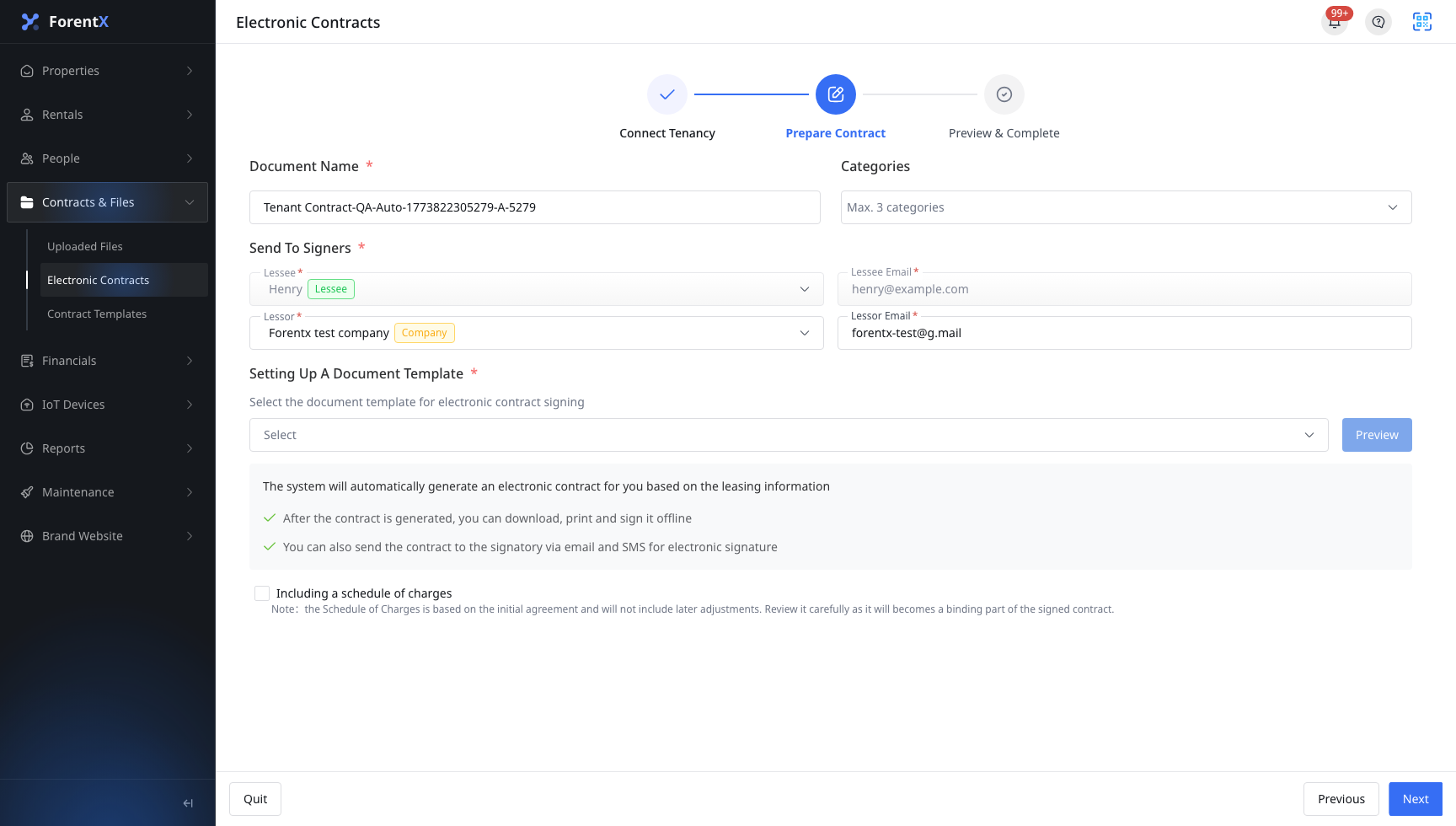
Step 4 Click [Next] to generate the preview. Review the content carefully before you continue.
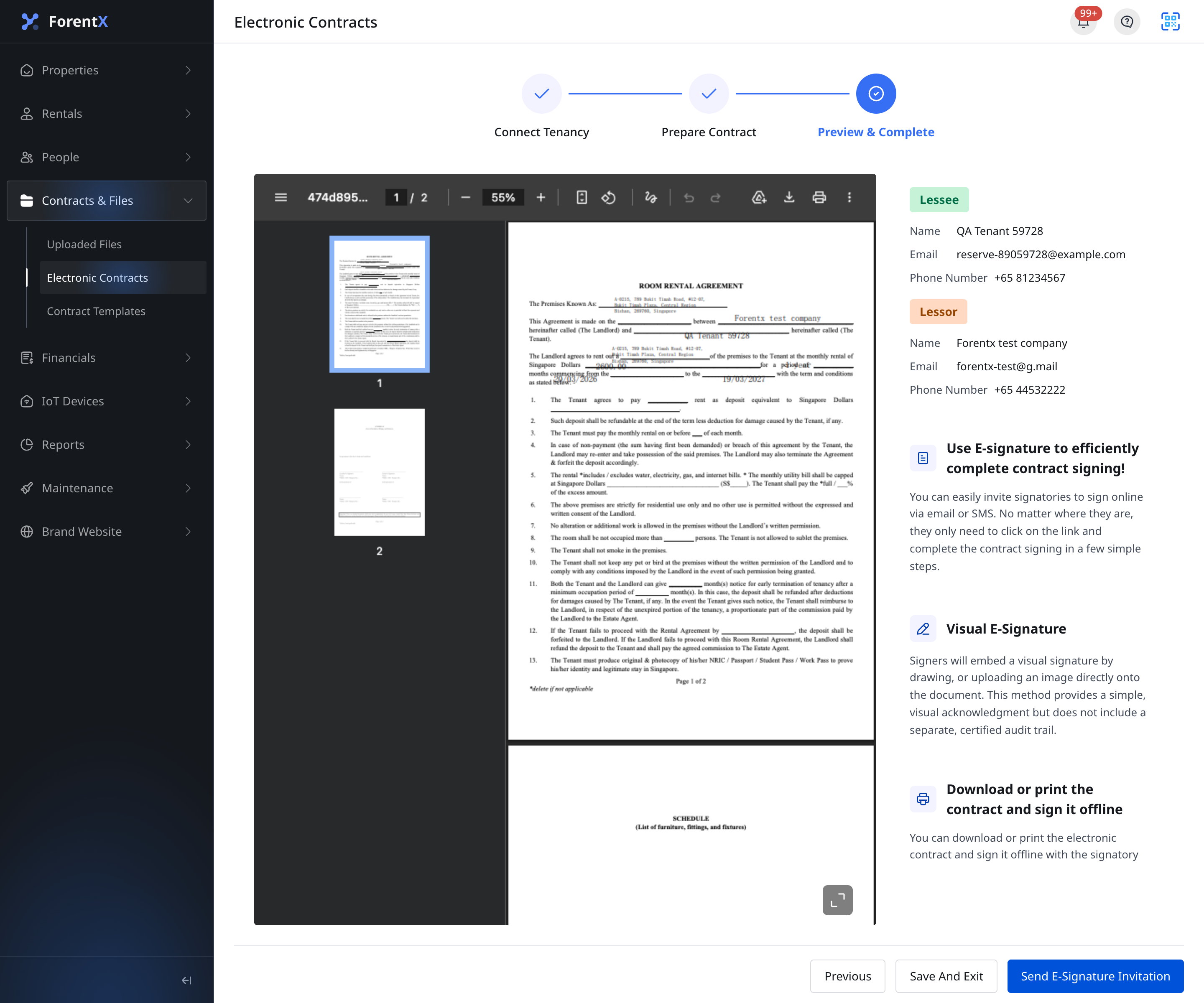
Step 5 Choose the final action that matches your workflow:
- Click [Send E-Signature Invitation] to start the e-signing process immediately
- Click [Save And Exit] if you want to keep the draft first and send it later
App
Step 1 Open [Electronic Contracts] from [Home], review the current list, then tap [Add Electronic Contract].

Step 2 On [Create Electronic Contract], choose [Select Associated Lease] and [Select Contract Template].
Turn on [Including Schedule of Charges] only when you want the current charge schedule appended.
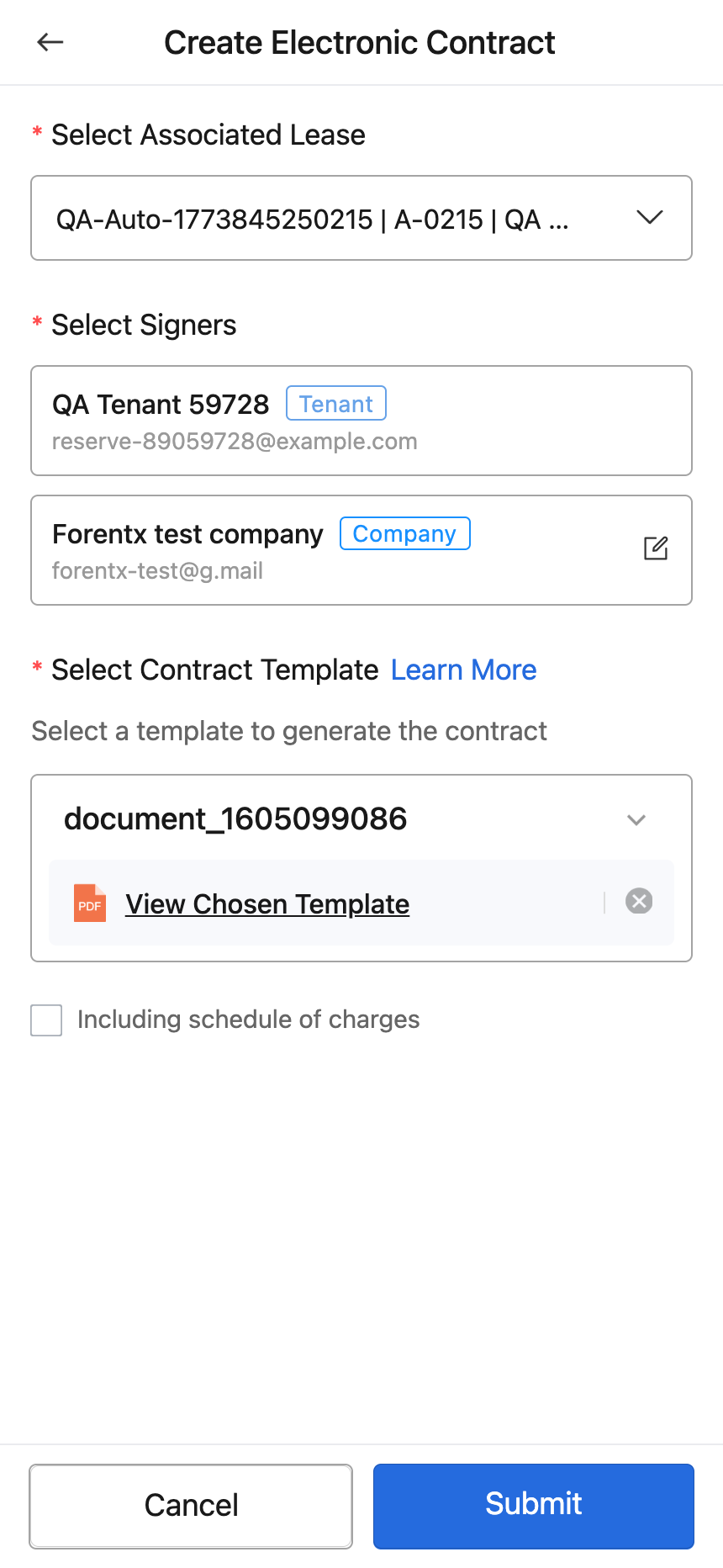
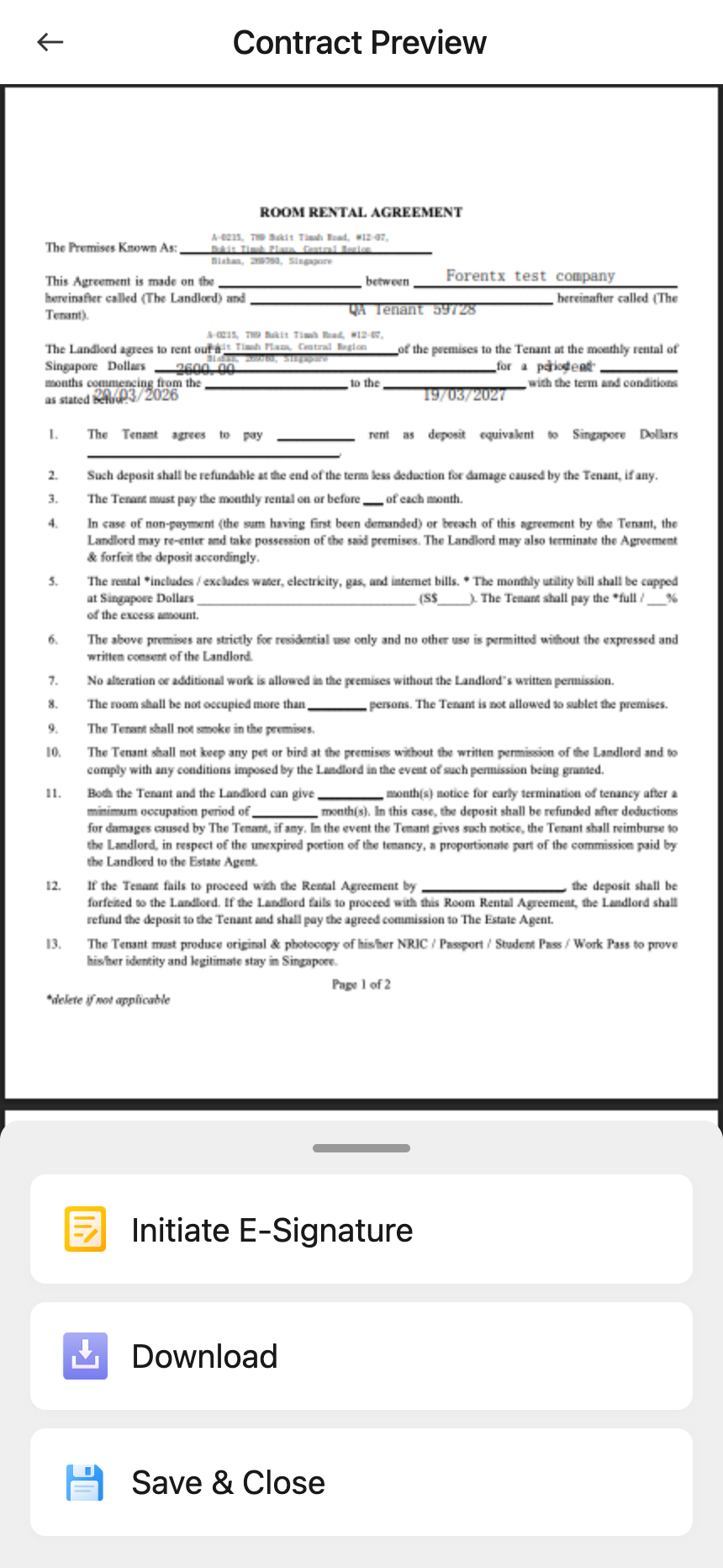
Step 3 Tap [Submit] to open [Contract Preview].
From this preview you can:
- Tap [Initiate E-Signature] to continue the signing flow
- Tap [Save & Close] to keep a draft first
- Tap [Download] if you need a local copy
Platform differences
| Topic | Web | App |
|---|---|---|
| Entry | [Contracts & Files] -> [Electronic Contracts] | [Home] -> [Electronic Contracts] |
| Create surface | Multi-step setup page with signer, category, and template details before preview | Compact create page, then [Contract Preview] |
| Preview actions | [Send E-Signature Invitation] or [Save And Exit] | [Initiate E-Signature], [Download], or [Save & Close] |
Note:
- The tenancy must already exist before you can create the electronic contract.
- The contract template controls which tenancy data can be filled into the generated contract.
- Both Web and App keep the draft and send actions inside the same electronic-contract workflow.