Where can I view all my receivable charges?
Use [Financials] -> [Charges] to review the current centralized list of receivable charges. On App, the same [Financials] entry opens the mobile charge list and the charge detail page.
Entry:
- Web: [Financials] -> [Charges]
- App: [Financials] -> [Charges]
Web
Open [Financials], then select [Charges]. The Web page is the main workspace for reviewing, filtering, and continuing work on charge records.
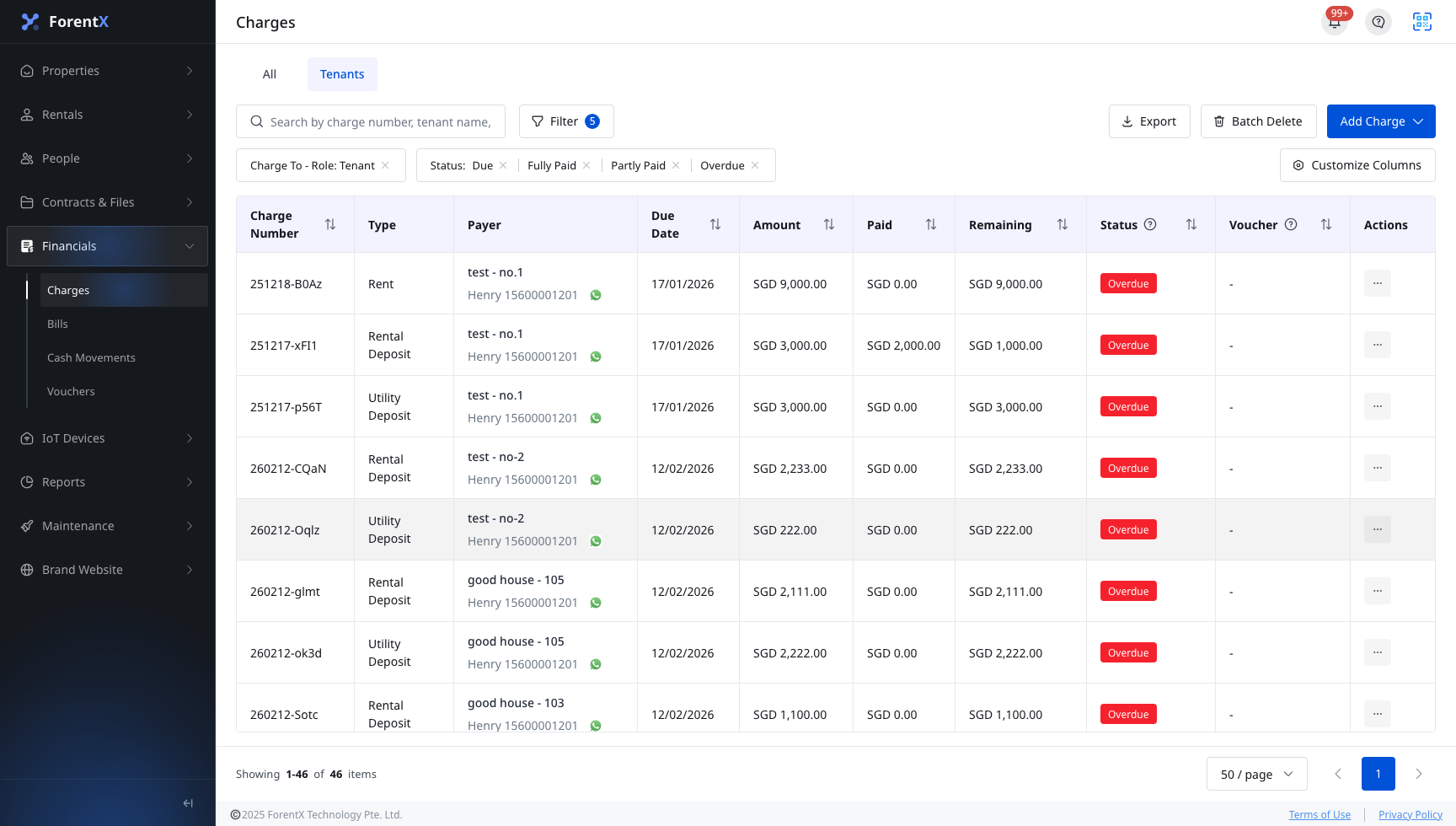
On this page you can:
- Switch between [All] and [Tenants]
- Use search and [Filter] to narrow the list by [Charge To], [Status], property, unit, due date, or charge create date
- Review [Charge Number], [Type], [Payer], [Due Date], [Amount], [Paid], [Remaining], [Status], and [Voucher]
- Continue with list actions such as [Export], [Customize Columns], [Add Charge], or the row menu when you need to work on a specific charge
App
Open the [Financials] tab and stay on [Charges]. The App page is designed for checking charge cards on the go and drilling into charge details.

On this page you can:
- Search by property, unit, or tenant and use [Filter] to narrow the list
- Review each charge card's [Type], [Amount], [Paid], [Remaining], [Due Date], and status
- Tap a charge card to open [Charges Details], where [Overview], [Charge Record], and [Uploaded Files] are grouped together
Platform differences
| Topic | Web | App |
|---|---|---|
| Entry | [Financials] -> [Charges] | [Financials] -> [Charges] |
| Main use | Full charge workspace with tabs, filters, export, and row actions | Mobile charge list with detail drilldown |
| Filters | Search, [Filter], [All] / [Tenants], column setup, and export | Search, [Filter], and charge cards |
| Follow-up actions | Can continue to actions such as [Edit], [Record Charge], [View Invoice], or [Split Charge] when the charge status allows it | Viewing continues in [Charges Details] with [Overview], [Charge Record], and [Uploaded Files] |
Note:
- The current UI label is [Charges]. If you are following an older article or bookmark that says "receivable charges," use [Charges] as the current entry name.
- App currently focuses on viewing the list and the detail page. Creating charges, editing them, recording payments, viewing invoices, and splitting charges still stay on Web.