How do I reverse an incorrectly recorded incoming payment?
Use [Reverse] in [Financials] -> [Cash Movements] -> [Collections] when an incoming payment was recorded by mistake. This direct reverse flow is currently available on Web only.
Entry:
- Web: [Financials] -> [Cash Movements] -> [Collections]
- App: Open [Financials] -> [Payments] -> [Collections] to view existing records only. App does not provide [Reverse].
Web
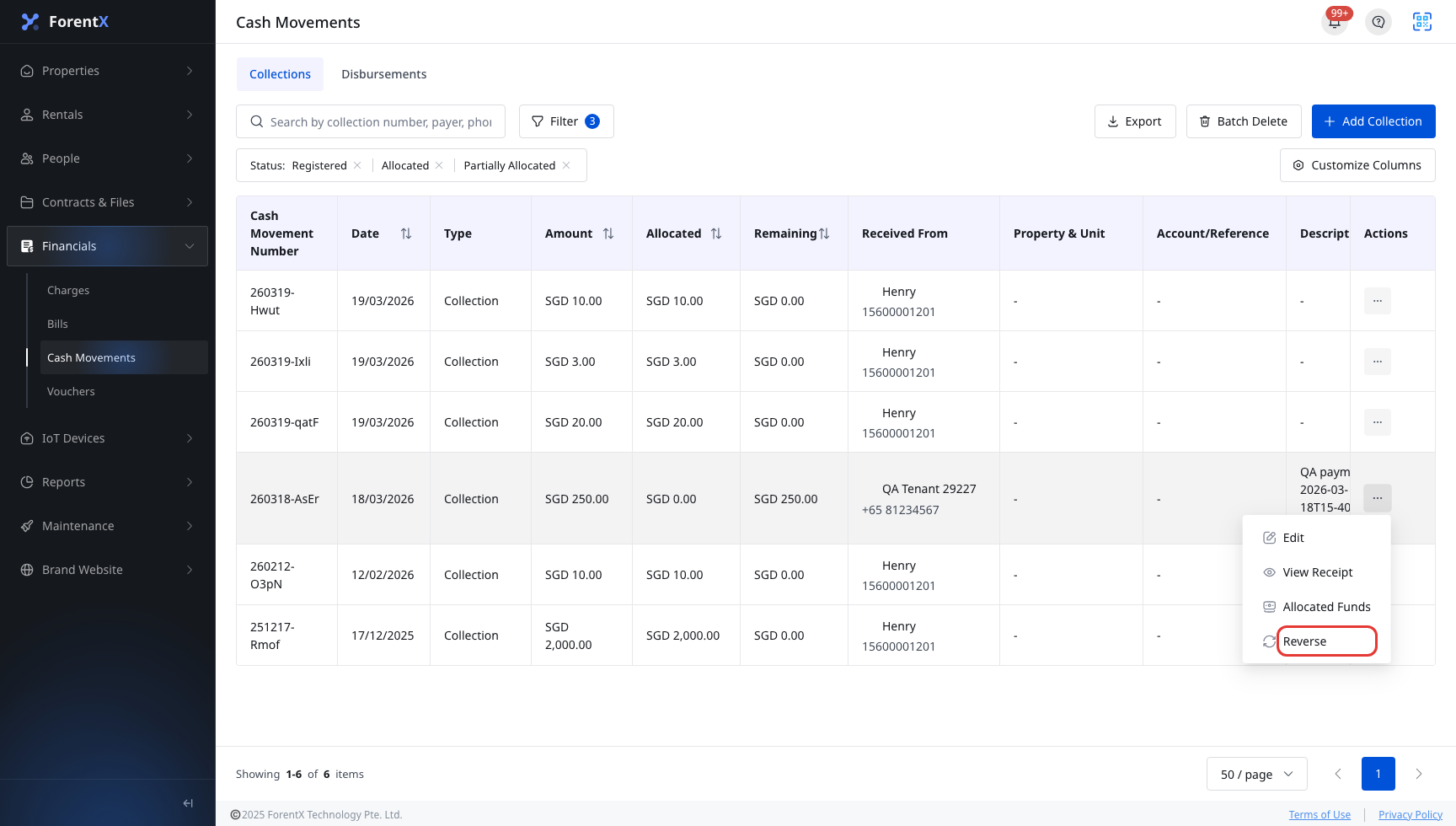
Step 1 Open [Collections], find the incorrect collection, open the row [Actions] menu, then click [Reverse].
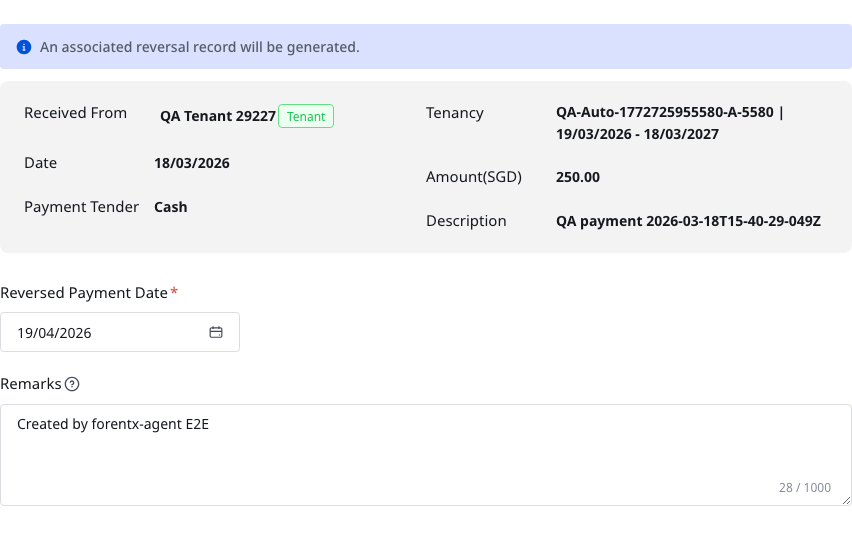
Step 2 In [Reverse Collection], review the payment details, then complete the reverse fields:
- Review [Received From], [Date], [Payment Tender], [Tenancy], [Amount], and [Description]
- Confirm or change [Reversed Payment Date]
- Update [Remarks] if needed
After that, click [Save].
App
App currently supports the collection follow-up flow after a payment already exists:
- View the [Collections] list
- Filter collection records
- Open payment details
- Review allocation history for eligible records
App does not currently provide [Reverse], the reverse dialog, or the save flow used on Web.
Platform differences
| Topic | Web | App |
|---|---|---|
| Entry | [Financials] -> [Cash Movements] -> [Collections] | [Financials] -> [Payments] -> [Collections] for list and details only |
| Reverse action | Supported from the row action menu | Not supported |
| Form presentation | Modal dialog with current payment details and reverse fields | No reverse form |
| Reversed record visibility | Hidden by the default filter until [Reversed] is included | View-only |
Note:
- The current default row action is [Reverse].
- After you save, reversed flows drop out of the default list because the default status filter only shows [Registered], [Allocated], and [Partially Allocated]. Open [Filter] and include [Reversed] when you need to see them again.
- The older [Cancel Reverse] flow is not part of the current default Collections action menu.