How do I edit an unpaid charge?
Use this flow when a charge is still editable and you need to update its details before payment is completed.
Entry:
- [Financials] -> [Charges]
Web
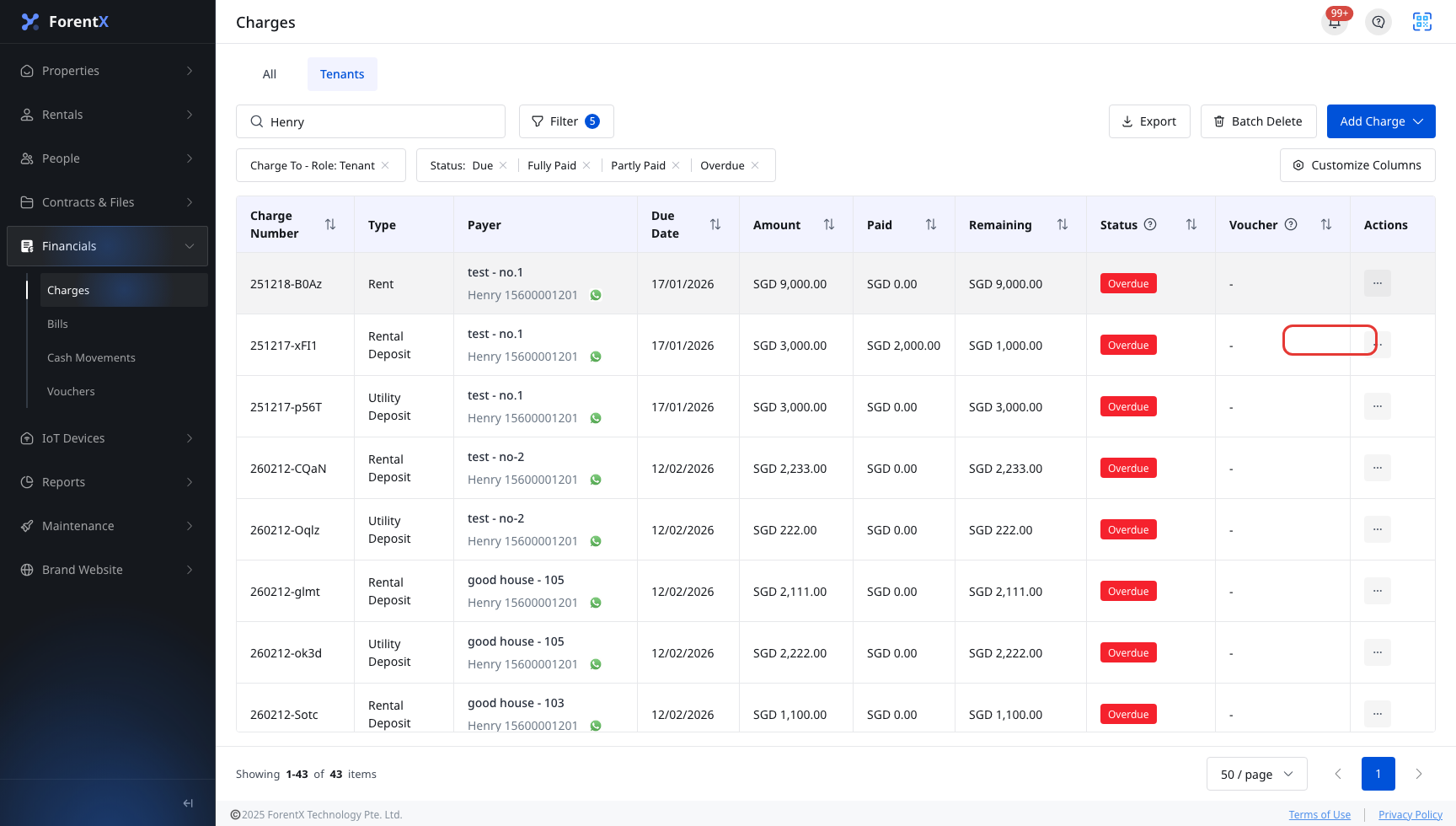
Open [Charges], find the charge you need, then use the row [Actions] menu to click [Edit].
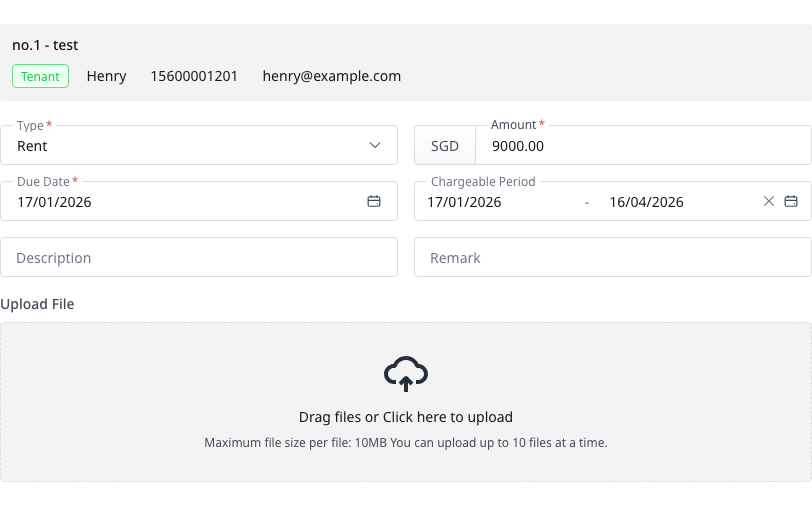
Update the fields you need in [Edit Charge], then click [Save]. Common editable fields include:
- [Type]
- [Amount]
- [Due Date]
- [Chargeable Period]
- [Description]
- [Remark]
- Attachments
App
On the app, you can open [Financials] -> [Charges] to review the charge list, charge details, payment history, and uploaded files. The app does not currently provide an [Edit] action for charges.
Platform differences
- Web supports the [Edit] action and the [Edit Charge] drawer.
- App supports charge lookup and detail review only, without charge editing.
Note:
- The current menu only shows [Edit] when the charge still meets the editable conditions.
- Some fields remain read-only for deposit-related, online-payment, or meter-generated charges in the current Web implementation.