How do I manually add a charge from the Charges page?
Use this flow when you need to create a one-off charge from the centralized [Charges] workspace.
Entry:
- [Financials] -> [Charges]
Web
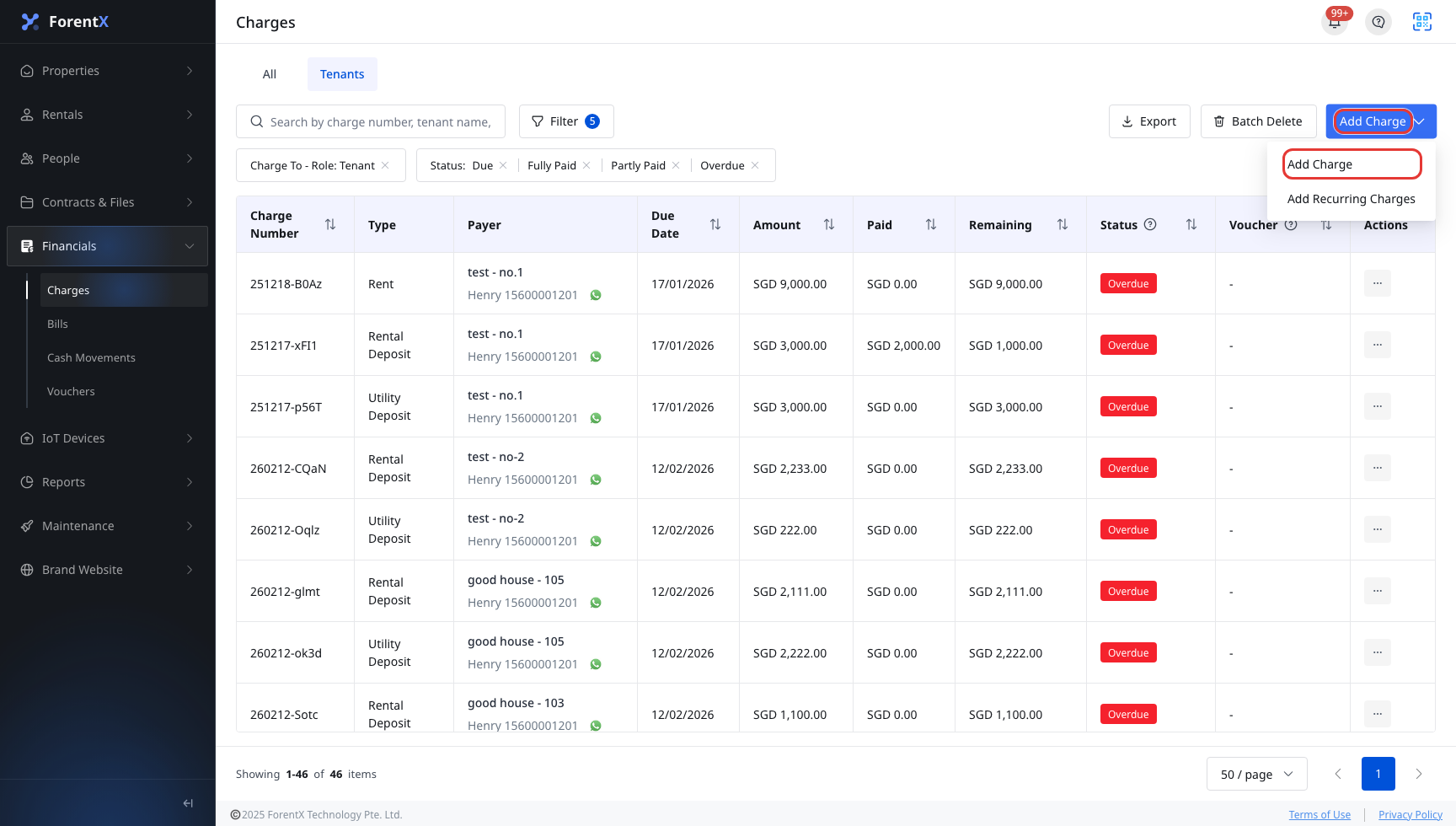
Open [Charges], then use the tab that matches your task before you click [Add Charge].
- Use [Tenants] when you already know you are creating a tenant charge. The page opens as [Add Tenant Charge].
- Use [All] when you need to choose the recipient role first. In the current Web flow, [Charge To] can return tenant, landlord, vendor, and other-party records.
In [Add Charge], select the recipient and tenancy first, then complete the charge line. The required fields are:
- [Charge To]
- [Tenancy]
- One charge row with [Type], [Due Date], and [Amount]
- Optional fields such as [Chargeable Period], [Description], and [Upload Files]
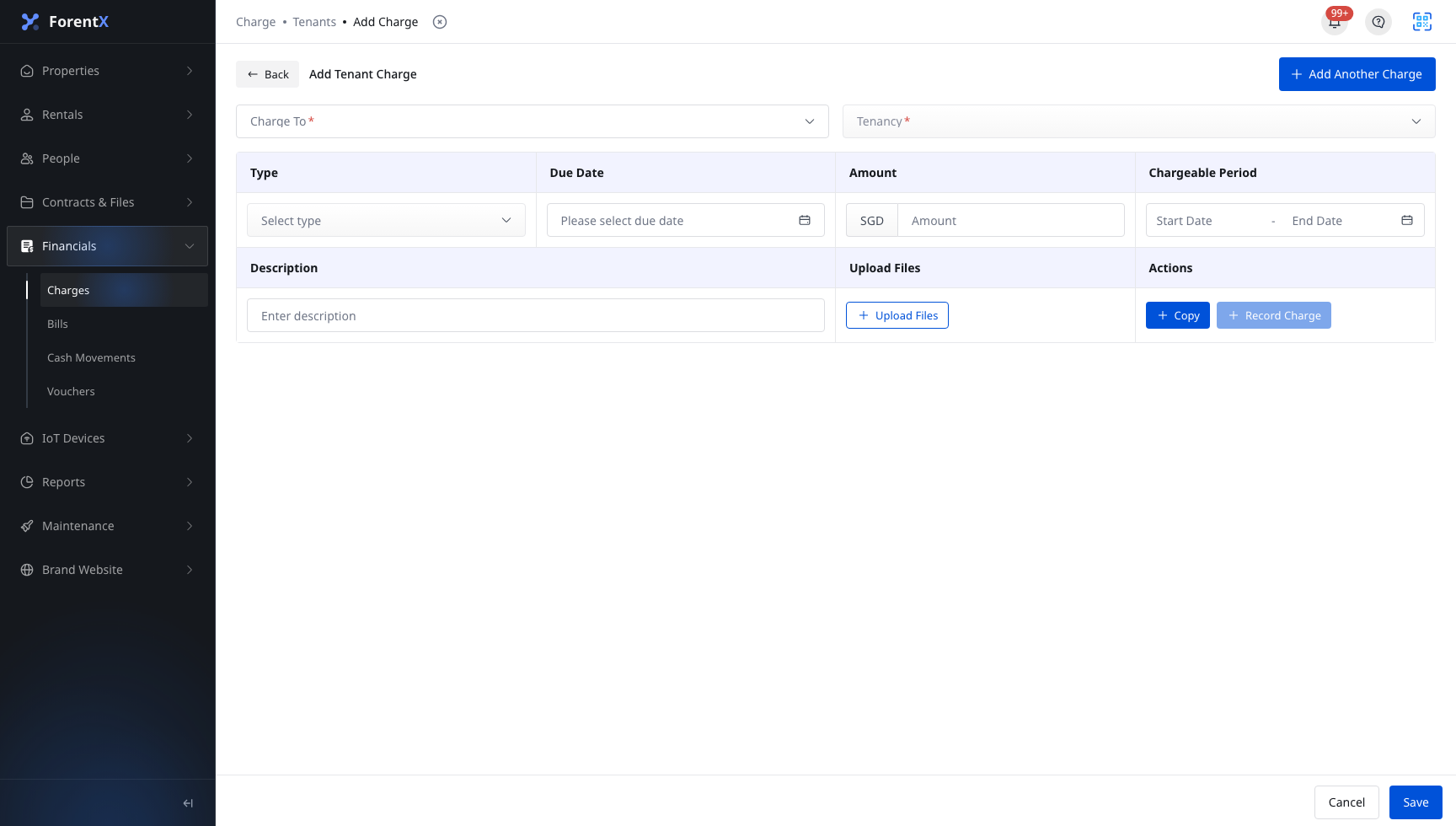
If you need more than one line, click [Add Another Charge]. If you want to reuse the current row, use [Copy] inside the row before you save.
Click [Save]. After the charge is created, the page returns to the previous charges flow so you can continue reviewing the new record in [Charges].
App
On the app, you can open [Financials] -> [Charges] to review the charge list, charge details, payment history, and uploaded files. The app does not currently provide an [Add Charge] entry or charge creation form.
Platform differences
- Web supports creating one-off charges from [Charges].
- App supports charge lookup and detail review only, without manual charge creation.
Note:
- On the current [Tenants] route, [Charge To] stays in tenant context.
- On the current [All] route, the [Charge To] picker supports tenant, landlord, vendor, and other-party records.
- Use [Add Recurring Charges] instead of [Add Charge] when you need a recurring schedule.